How to Create a QR Code Menu for a Restaurant
A restaurant QR code menu gives guests a quick way to open a menu on their own phone. The code itself does not host the menu: it points to a URL, so the menu page must be available, readable on mobile and kept up to date.
Choose where the menu will live
First decide how guests will view the menu. Options include a page on your restaurant website, a hosted PDF, or a menu platform. A mobile web page is often easier to read than a PDF because text can resize and guests do not need to pinch-zoom as much. Keep the URL stable so printed codes continue to work.
Organize the menu into clear sections such as breakfast, mains, drinks and desserts. Show prices, portion details and relevant allergen information accurately, and state how guests can ask staff about dietary needs.
Create the menu QR code
Copy the final public menu URL and open the Qrifo URL QR code generator. Paste the complete link, generate the code and download it. Use an HTTPS URL when possible and avoid links that require customers to sign in.
If the menu address changes often, use a stable URL on your own website and update the page behind it. A static QR code stores its destination; it does not automatically change when a file is moved.
Design and place table signs
Use a dark code on a light, plain background with a clear margin around all four sides. Do not stretch the code or place text, a logo or decorative marks over its data area. Print a short instruction such as “Scan to view the menu” and include a short URL or ask-staff option as a fallback.
Place the sign where a seated guest can reach and scan it without awkwardly leaning over food or other diners. Use a wipeable holder or durable print for busy venues.
Test the guest experience
Test the printed sign—not just the digital preview—using more than one phone if possible. Check the link on both iOS and Android, over Wi-Fi and mobile data, and make sure the page loads quickly. Verify prices, availability, links, language versions and allergen details before putting the signs on tables.
Ask a colleague unfamiliar with the setup to try it. If they cannot tell what to do or the menu is difficult to read, improve the instructions or page before printing more copies.
Keep accessibility and fallback options
Not every guest can or wants to use a smartphone. Keep printed menus available on request, train staff to help, and do not make a QR scan the only way to learn about ingredients or prices. Use readable type, clear contrast and simple page navigation.
For multilingual customers, provide a language selector on the menu page rather than printing an unreadably dense code or a long list of instructions on the sign.
Measure and maintain the menu
Review the menu page whenever prices, opening hours or seasonal items change. If you use analytics, collect only what you need and disclose tracking appropriately. A rise in scans alone does not prove guests are satisfied; combine basic measurements with staff observations and customer feedback.
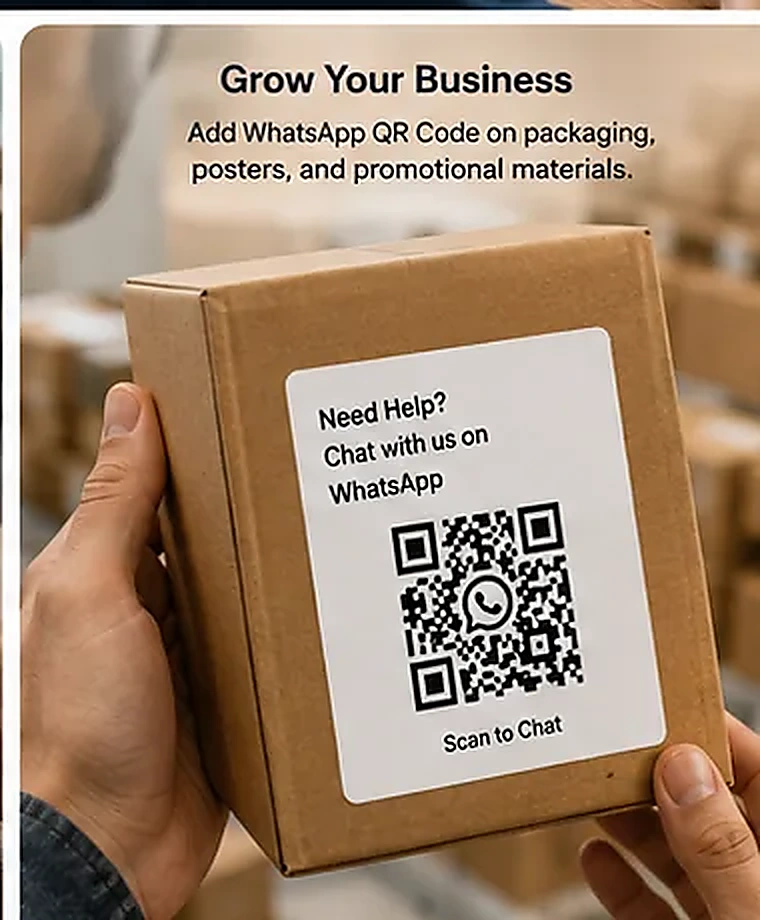
For other customer contact points, see the WhatsApp QR code for business guide. You can also create a WiFi QR code for guest internet access.
Frequently asked questions
Does a QR code menu need an app?
Usually not. A QR code can open a mobile-friendly web page in the phone browser, so guests do not need to install a restaurant app.
Should I use a PDF or a web page?
Both can work, but a well-designed mobile web page is often easier to read, update and navigate than a large PDF.
What if a guest cannot scan the code?
Offer a printed menu or staff assistance and make sure the sign includes a clear instruction and good contrast.
Try the free tools: Qrifo QR code generator · barcode generator · QR and barcode scanner.
Related guides
More tools: URL QR WiFi QR WhatsApp QR vCard QR Barcode generator