Scan a QR Code or Barcode and Understand It
Use your camera or upload an image. See the decoded result, then ask AI to explain it in simple English or Roman Urdu.
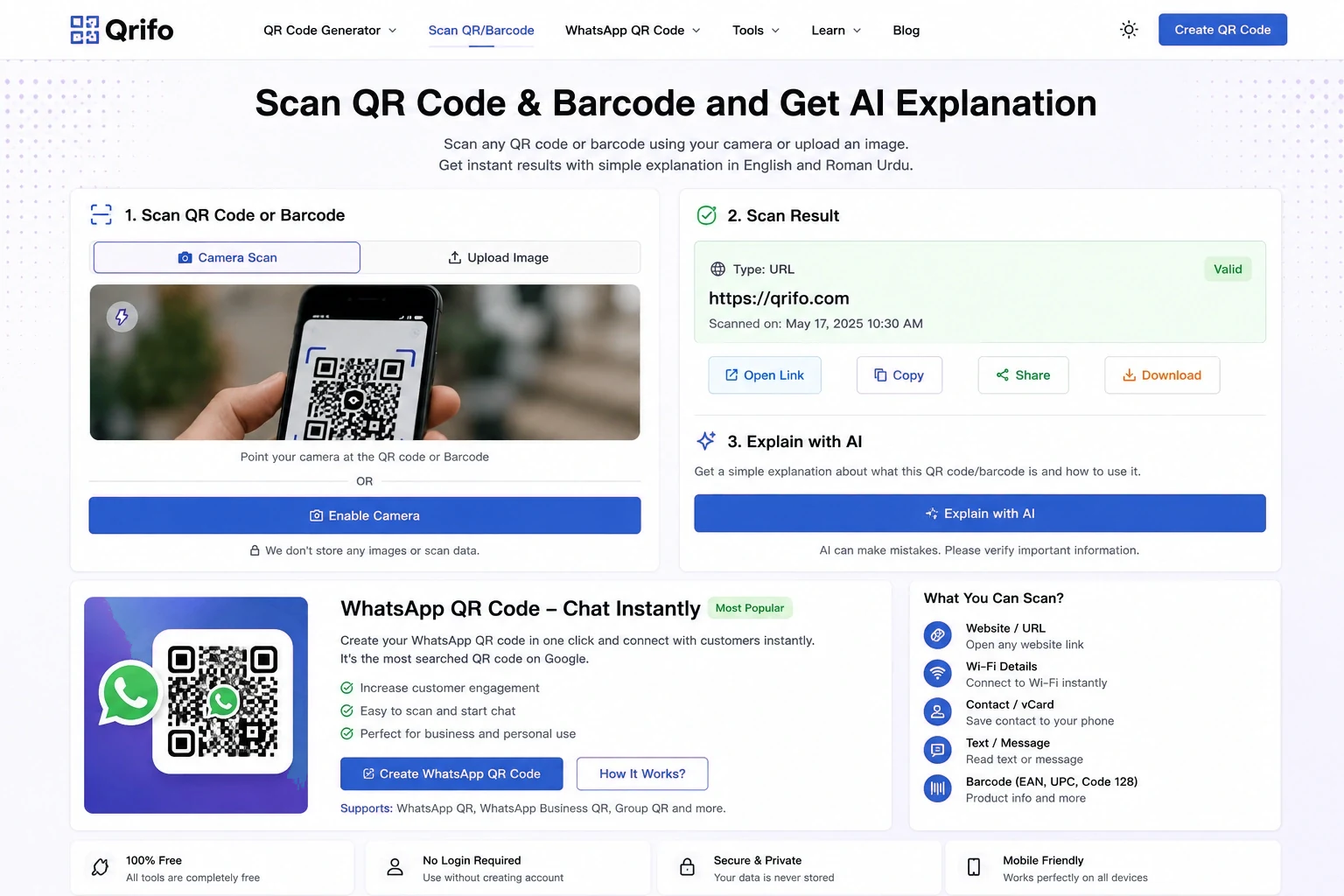
1. Scan QR code or barcode
Camera access requires permission and a secure HTTPS connection.
Supports QR codes and common barcode formats when detected by the browser scanner. Camera permission is only requested when you press Start.
2. Scan result
Your decoded result will appear here.
3. Explain with AI
Gemini explains the scanned content; it cannot guarantee that a link or product is safe or authentic.

Need to create a QR code too?
Make a WhatsApp, Wi-Fi, website, email or contact QR code with Qrifo's free tools.
Create WhatsApp QR Explore all generatorsWhat can you scan?
Read the visible URL before opening it.
Identify encoded network or contact data.
Read plain text stored in a QR code.
Read a barcode number; product details need a database.
QR scanner and AI FAQs
Can I scan without a camera?
Yes. Upload a clear image of the QR code or barcode. A readable, well-lit image usually works best.
Can Gemini identify every product barcode?
No. A barcode usually contains an identifier. Product names, prices and other details require a reliable product database and may not be available for every item.
Is every scanned QR link safe?
No. Check the full domain and expected destination before opening a link. An AI explanation is not a security guarantee.
Is my scan automatically sent to AI?
No. Scanning happens in the browser. The decoded result is sent to Qrifo's AI endpoint only when you choose Explain with AI. Avoid sharing passwords or sensitive personal data.