How to Use a QR Code on a Digital Business Card
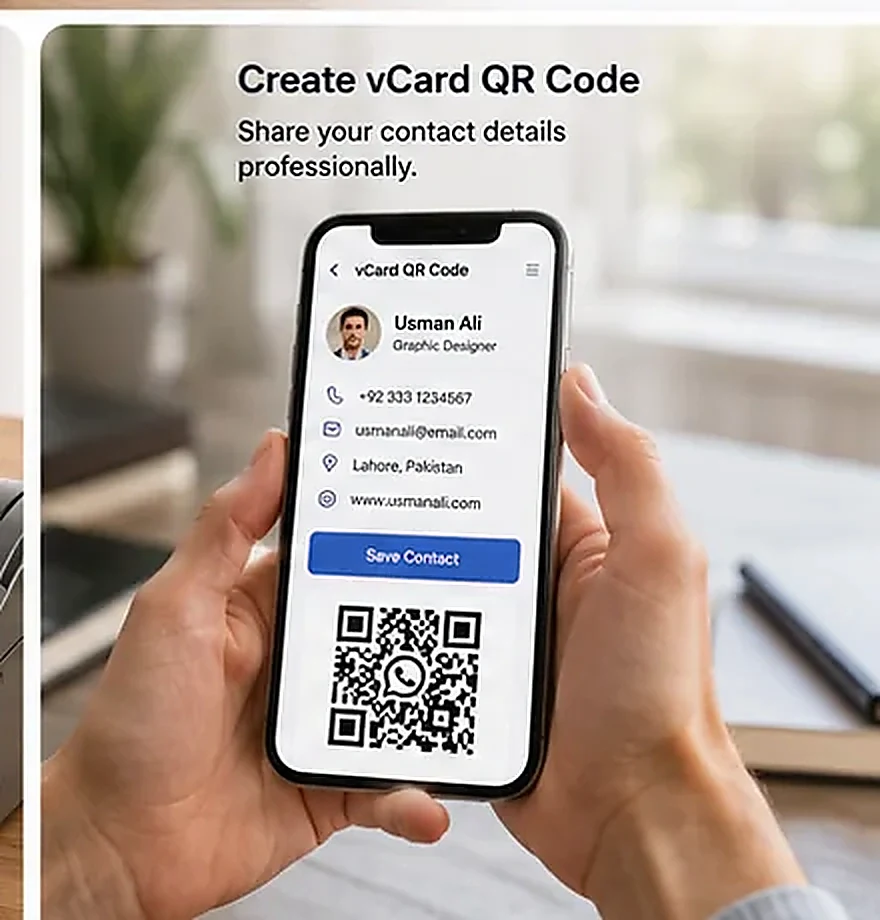
A QR code on a business card can make it easier for a new contact to save your details. A vCard QR code can encode contact information that compatible phone apps may offer to save to an address book. Test the result on real devices before printing a large batch.
Decide which details to share
Include the details that help someone contact you professionally: name, role, organization, business phone, work email and website. Add a business address only if it is appropriate to share publicly. Avoid personal information that a recipient does not need.
Use a professional email address and check every character in phone numbers and URLs. International phone numbers should include the correct country calling code when you expect contacts from other countries.
Create a vCard QR code
Open Qrifo’s vCard QR code generator, enter the contact fields and generate the code. Download the file and keep the original contact details somewhere safe so you can recreate it if needed.
A vCard code typically contains contact data directly. That is convenient, but it also means details embedded in a static code will not update if you change your phone number or job title later.
Check privacy before publishing
Assume that anyone who sees a printed QR code may scan it and view the information it contains. Do not encode private notes, personal identifiers or details you would not want distributed. If you use a QR code that opens an online profile instead, review what that profile reveals and its privacy settings.
For a business card, a work phone number and business email are usually more suitable than personal contact details, depending on your role and preferences.
Make the printed card scan reliably
Keep the code high contrast, square and undistorted, with a clear quiet zone around it. Avoid putting it over a photograph or textured background. Leave enough space around the code so it is easy to frame with a camera.
Include a short label such as “Scan to save contact” so the purpose is clear. The QR code should complement the printed name and contact details, not replace all readable information.
Test with different phones
Scan a test print with more than one device and confirm the preview shows the correct name, organization, phone and email. Check whether the phone offers to create a new contact and verify the saved record afterward. A code that scans successfully can still contain a typo in its data.
Also test a digital version if you plan to use the card in email signatures or on-screen presentations. If scanning from the same phone, the recipient may need to open the image on another device or use a supported image-scanning feature.
Plan for future changes
If your contact details change rarely, a vCard QR code can be a simple option. If you expect frequent changes, consider a stable profile page on a domain you control and encode that page URL instead. You can then update the page without reprinting the code, as long as the URL stays the same.
For general setup, read our beginner’s QR code guide. For customer enquiries, a separate WhatsApp QR code may be more appropriate.
Frequently asked questions
What is a vCard QR code?
It is a QR code that contains contact details in a structured format that compatible devices can offer to save as a contact.
Will the contact details update automatically?
Not if the details are encoded directly in a static vCard code. You would need to create and share a new code, or use a stable profile URL that you can update.
Can I put a QR code on a printed business card?
Yes. Keep strong contrast and a clear margin, print it large enough to scan, and test the actual print before ordering a large quantity.
Try the free tools: Qrifo QR code generator · barcode generator · QR and barcode scanner.
Related guides
More tools: URL QR WiFi QR WhatsApp QR vCard QR Barcode generator